
Export Estimate Worksheet data from STACK to create a Project Quote or Sales Quote in Acumatica.
This integration transfers eligible Estimate Worksheet line items directly into Acumatica and creates the corresponding quote based on your selected export settings.
Key Information
The Acumatica integration is a paid add-on to your STACK subscription.
The Acumatica connection must be established before exporting. Setup is completed once per account.
Any STACK user can export after the connection is configured.
Only Active Opportunities are available for selection.
Export is a one-time transfer. Changes made in STACK after export are not updated in Acumatica.
Only line items in the main Estimate Worksheet grid are exported.
Other Costs are not exported unless distributed to line items.
If Define Scope is used, only in-scope items are exported.
-
Each item must have:
An Item Number matching the Acumatica Inventory ID
A Purchase Unit matching the Acumatica UOM
A Takeoff Tag Value assigned
An Accounting Code (if used) matching the Acumatica Cost Code (30-character max)
Takeoff Tag Values and Labels are limited to 100 characters.
The Unit Cost field must contain a value (including 0.00) for a line to export.
Overview
Once the connection is established, Estimate Worksheet data can be exported from the Worksheet menu.
During export, you will:
Select the destination (Project Quote or Sales Quote)
Choose the Opportunity or Project
Map required fields (Project Quotes only)
Confirm and complete the export
STACK creates the Quote in Acumatica and generates one line per eligible Estimate Worksheet item based on the export rules below.
Export Order (When Grouped Export Is Enabled)
1. Tag (Task Level)
Uses the Tag selected as Task during export (Project Quotes).
If no Tag is configured (for example, Sales Quotes), Tag sorting is skipped.
2. Takeoff (Within Each Tag)
If a manual Takeoff order exists, that order is used.
If no manual order exists, Takeoffs are sorted alphanumerically by Takeoff Name.
3. Items (Within Each Takeoff)
If an item comes from an Assembly with a manually defined Required Items order, that order is preserved.
Otherwise, items follow the default estimate sort order (based on estimate preferences or Item Name).
4. Fallback
If none of the above conditions apply, the default API order is used.
Quantity and Cost Type Rules
Unit Cost Requirements
If the Unit Cost field is empty, the line will NOT be exported.
The Unit Cost must contain a value, even if that value is 0.00.
Zero Quantity Behavior
Zero-quantity lines are exported under the following conditions:
If the Unit Cost is non-zero, the line is pushed.
If the Unit Cost is zero and the item has a Cost Type, the line is pushed.
If the Unit Cost field is empty, the line is not pushed.
Exporting Estimate Worksheet Data to Acumatica
Before exporting, confirm:
The Item Number matches the Inventory ID in Acumatica.
The Purchase Unit matches the Acumatica UOM.
If an Accounting Code is present, it matches the Cost Code in Acumatica.
The Unit Cost field contains a value (including zero).
To Export
Open the Estimate Worksheet.
Click Worksheet.
Click the three dots on the worksheet toolbar.
-
Select Export > Acumatica.
TIP
If Acumatica does not appear, select Set up a new connection. (See Connect Your Acumatica and STACK Account) -
Select the Destination in Acumatica (Project Quote or Sales Quote).
TIP
If warnings appear, resolve them before proceeding.
If a customization package version warning appears, update the package before continuing. For Project Quotes, select a Project Quote Template if applicable.
Click Next.
Select the Acumatica Opportunity or Project.
Only Active Opportunities are available.For Project Quotes, map required STACK Tags to Acumatica fields.
The Task field always appears and is required.
Additional fields appear only if User Defined Fields are configured in Acumatica.Click Export to begin the export.
A notification appears under the bell icon when the export completes or fails.
What Data Is Exported
During export, STACK data maps to Acumatica as follows:
| STACK Data | Acumatica Data |
|---|---|
| Item Number | Inventory ID |
| Purchase Unit | UOM |
| Cost Type | Accounting Group |
| Accounting Code | Cost Code |
| Unit Cost + Markup + Distributed Costs | Unit Cost |
| Unit Cost + Markup + Distributed Costs | Unit Price |
| Takeoff Quantity | Quantity |
| Takeoff Tag Value | Task ID |
Acumatica Quote Behavior
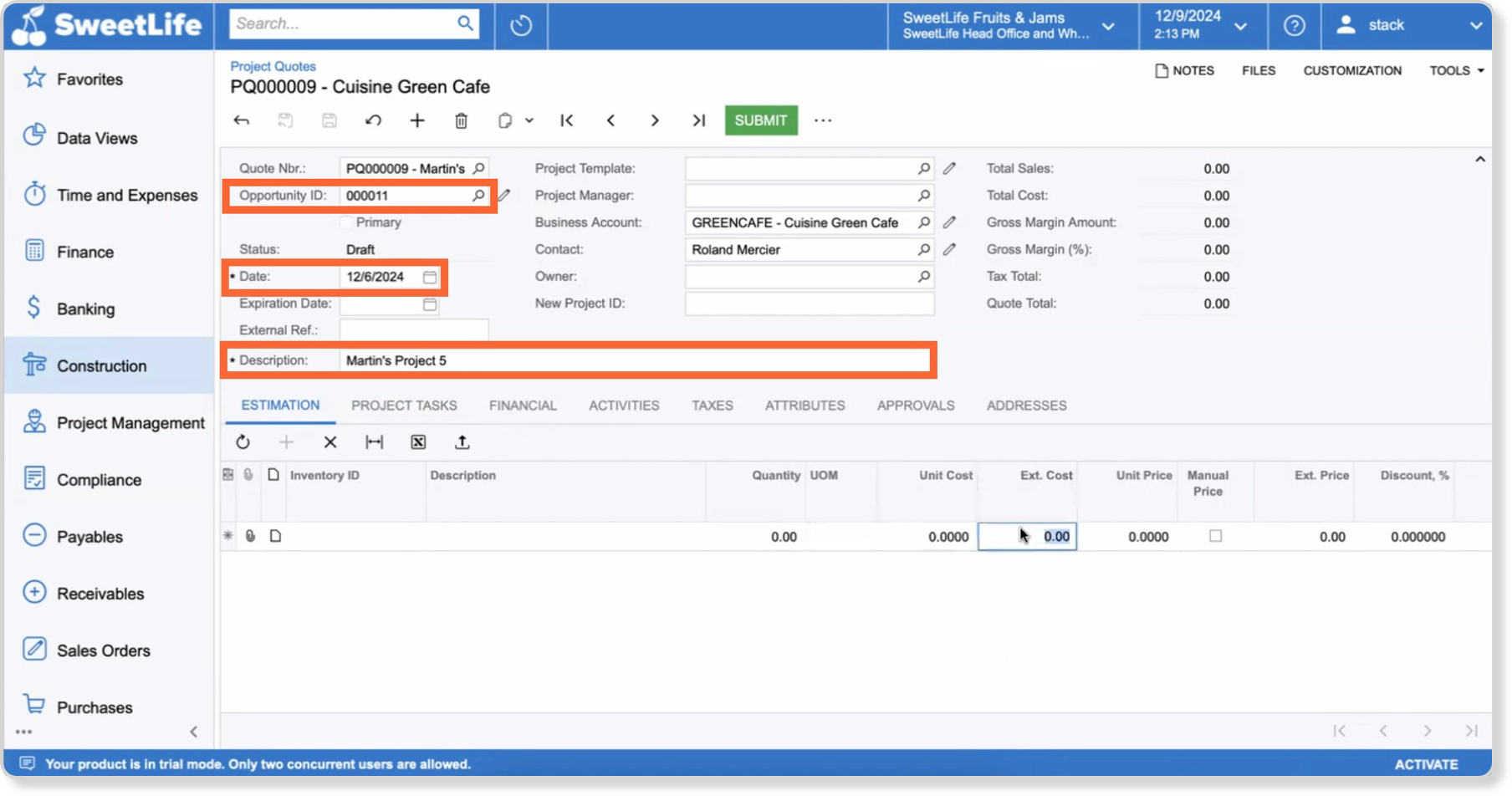
Quote Header
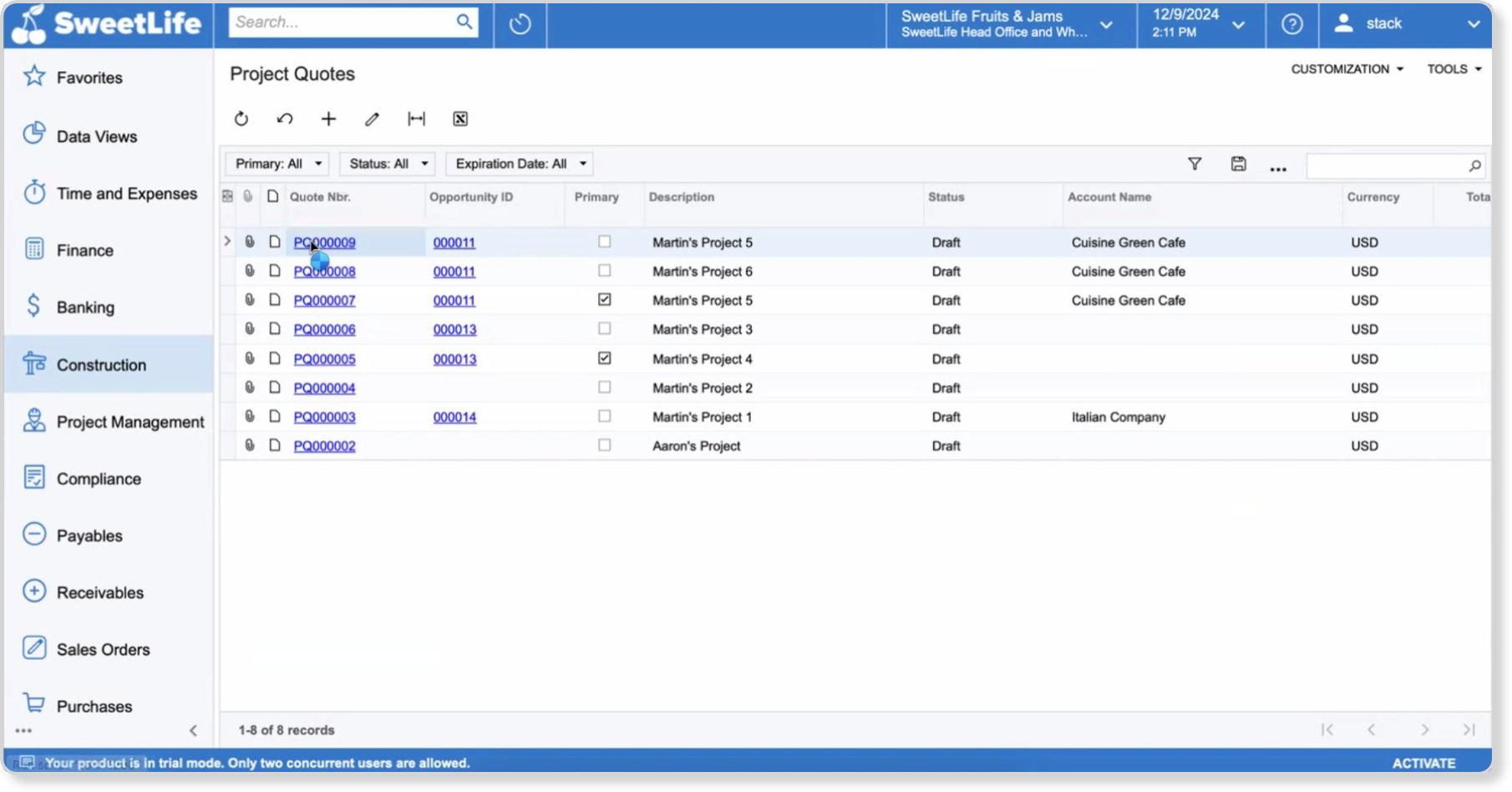
Opportunity ID = Selected Project/Opportunity
Description = Estimate Worksheet Name
Date = Date of export
Other header fields are populated by Acumatica
Estimation Tab
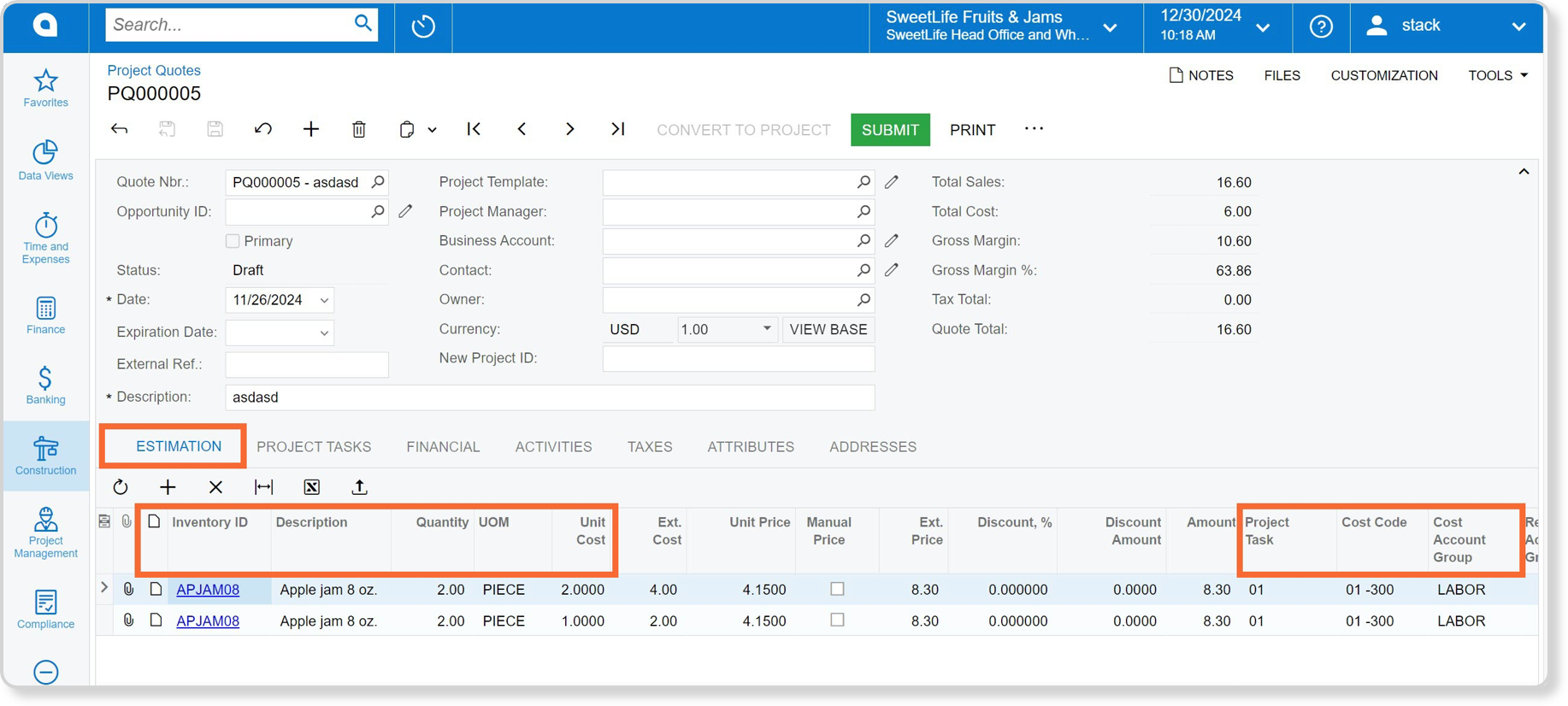
STACK creates one line per exported item and populates:
Record Note (if a Line-Item Note exists)
Inventory ID
Description
Quantity
UOM
Unit Price
Project Task (Takeoff Tag Value)
Cost Code
Cost Account Group
Other columns are calculated by Acumatica.
Project Tasks Tab (Project Quotes Only)
For Project Quotes:
A Task is created for each Takeoff Tag Value associated with the Tag selected during export.
Project Task Number is based on the order of the Takeoff Tag Value in STACK.
Description = Takeoff Tag Value name
Type = Cost and Revenue Task
If creating a Sales Quote and a STACK Tag was selected as Task, the task is associated at the line level but does not appear on the Tasks Tab.
Export to Change Order Request
Use this option to send estimate changes to Acumatica after a project has been awarded.
Once a Project Quote has been converted into a project in Acumatica, updates must go through the Change Order workflow. Exporting as a Change Order Request sends only the changes from the estimate into Acumatica, where they can be reviewed and approved before impacting the project.
To export a Change Order Request:
- Open the project in STACK.
- Click the ESTIMATES tab.
- Select the estimate to export.
- Click to open the Worksheet.
- Make the needed updates.
- Click the three dots in the upper right.
- Select Export > Acumatica.
- In the export flow, select Change Order Request.
- Enter a Description or a Reason for the Change Order Request.
- Click Continue.
- Complete any required mapping fields.
- Click Export.
STACK creates a Change Order Request in Acumatica for review and approval.
This option is only available for projects and does not apply to quotes or sales orders.
Acumatica version 25 or newer is required.
Quantities are sent as changes (deltas), while rates are sent as entered.
Project budgets are updated only after the Change Order Request is approved in Acumatica.
Acumatica Customization Project
STACK relies on a customization project in Acumatica to support integrations and new features.
New connections already use the latest version: 25.200.001.00.00.03. This version supports:
- Acumatica v26 R1
- Estimate Worksheet integration with Change Order Requests
If the connection was set up earlier, it may still be using an older version (23.200.001.00.00.02). Update it to access newer features.
To upgrade:
- Download the latest customization project:
https://go.stackct.com/current/partners/acumatica/STACKTE[25.200.001][00.00.03].zip - Install the package in Acumatica.
- In STACK, open the Acumatica configuration dialog and click Update Package.
NOTE
The customization project must be upgraded in Acumatica before updating the package in STACK.
Related Articles
Connect Your Acumatica and STACK Account
Best Practices to Use Acumatica with STACK
Create a Project from an External Source
Export Item Quantities to Acumatica
Create, Edit, or Delete Custom Items
Estimate Worksheet Overview
Takeoff Tags
See how others use this feature in the STACK Community.
If you need additional assistance, please Contact Us.
Comments
Please sign in to leave a comment.