Accounting for Window/Door Openings in Takeoffs

If you need to incorporate space for elements like Windows, or Doors into a Takeoff measurement you're creating, there are a couple of ways to do this:
You can remove space from any Area, Pitched Area, or Volume 2D Takeoff measurement using the “Cut Out” tool from the toolbar on the right side of your screen.
NOTE: This option will not appear as selectable until you have selected the measurement you wish to use it on.
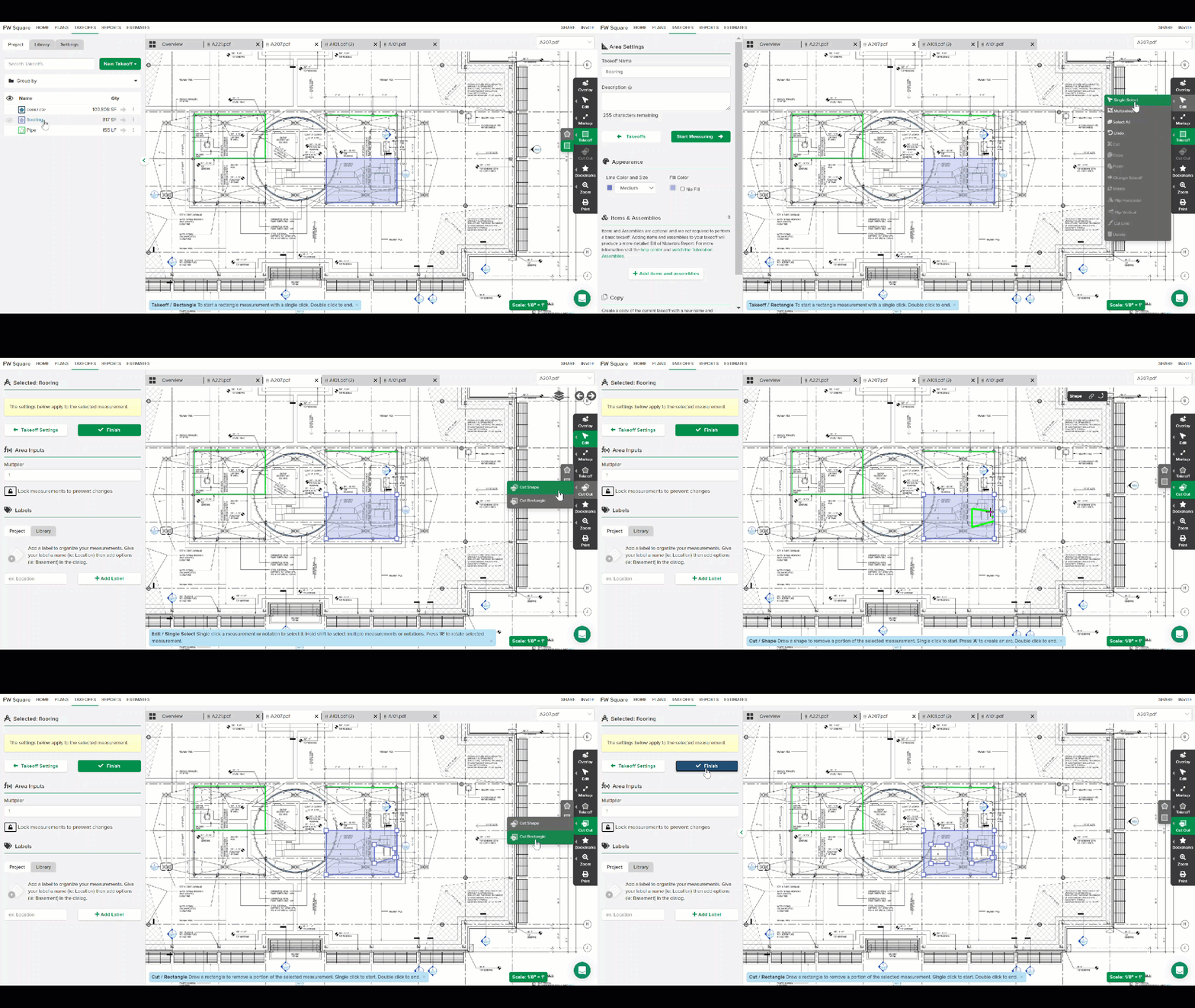
Click here for a support article on using the Cut Out tool
Click here or a short training video on using the Cut Out tool
Another method is to use Assemblies that include Items specially created to represent openings. These Items have formulas attached utilizing Variables to account for the differences caused by the openings.
We recommend you search "Openings", or "Deduct" in the "Assemblies" section of the “STACK”, or “Quickstart” Library menus to find examples of pre-built Assemblies exactly like the type described above for a variety of scenarios.
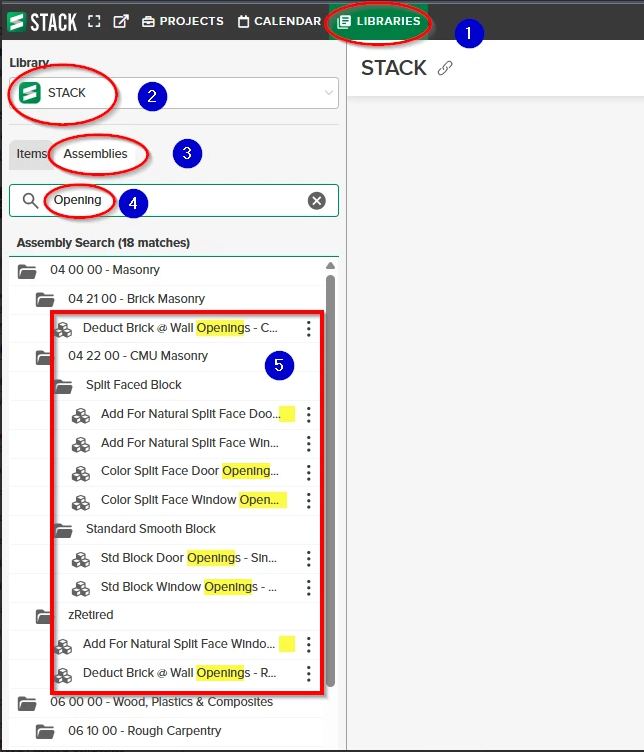
If you find a pre-built Assembly that comes close to what you need, you can create an editable copy of it by opening it, and then using the "Save As" button to save a copy of it to the specific folder location you want it to be stored within your STACK account. Once you have saved that Assembly to it's new folder location, you can rename it, and edit it as needed.
Click here for a tutorial video on saving, and editing copies of Assemblies.
Comments
Please sign in to leave a comment.