Managing Addenda

Posted by: Devon Streckfuss
STACK provides an "Overlay" tool to help you see the changes between the original version of a plan, and it's new version.
Before using this tool though; it's recommended that you upload revised versions of your plans to their own folders in your projects. This makes it easier to determine which plans are the original, and which are addenda.
NOTE: At this point, if you want to retain an estimate for the original plans, you will need to create a copy of your project, and upload the new plans to the copied version so that you can make any changes needed to your takeoffs there. Working in the copied project ensures that the original project's estimate data does not change. Click here to learn how to copy projects in STACK.
When you're ready to review the changes between document versions in a project;
1. Open the original plan page
2. Select the "Overlay" tool from the top of the toolbar on the right side of your screen
3. Choose the new version of the plan from the menu to overlay it with the version you already have open
Once you have overlaid the plans and Identified what changes should be made, you can “Move” the measurements from the original plan to the new plan using the small arrow button in the overlay menu displayed in the top-right corner of your screen:
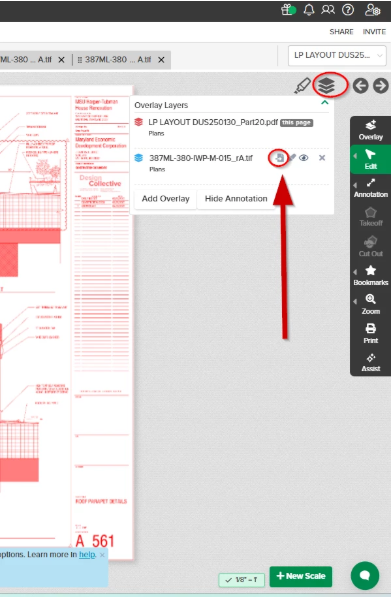
If you want to export an image of the two documents while they are being overlaid with one another, you can click the “Print” option from the toolbar on the right side of your screen, and then select the “Open Print Preview” option. This will provide you the ability to download an image showing the overlaid plans you’re viewing.
Comments
Please sign in to leave a comment.